You’ve written the title, set the price, picked the category — and then your ebay photos not uploading . The spinner turns and nothing happens. Or you get an error message that tells you nothing about what actually went wrong.
It’s frustrating precisely because eBay gives you so little to work with. A photo that’s too big fails the same way as a photo in the wrong format, which fails the same way as a photo blocked by your ad blocker. From your side, all three look identical: nothing happens.
The good news is that the causes are finite and well understood. In our experience the vast majority come down to four things — file size, file format, a browser problem, or eBay itself having a bad hour.
This guide works through all twelve causes in order of how likely they are and how fast they are to rule out. Start at the top. Most sellers are back listing within two or three minutes.
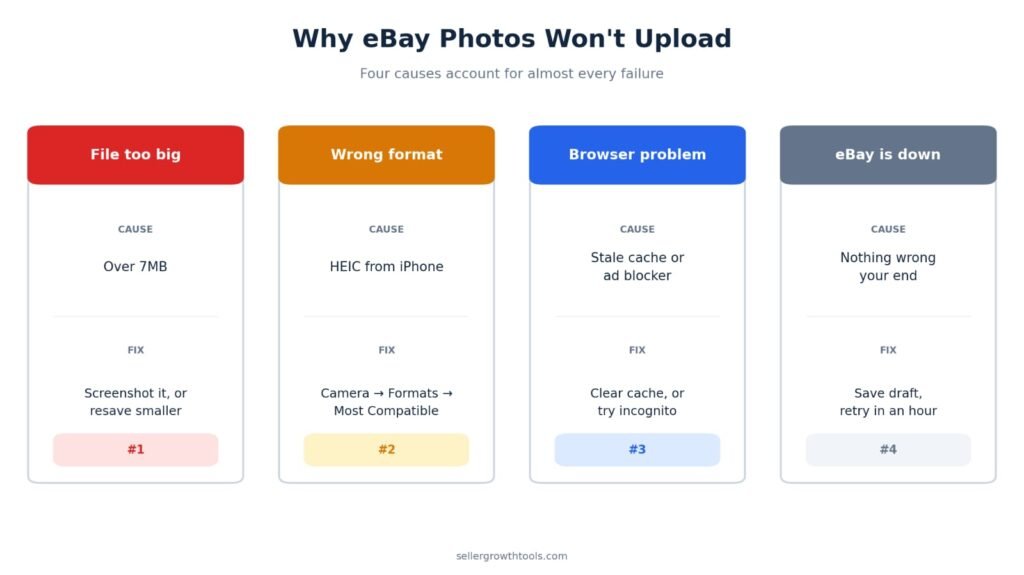
Try These Three Things First
Before you read any further, these three fix the majority of cases and take under a minute:
Check the file is under 7MB. Photos straight off a modern phone are routinely bigger than this.
Hard refresh the page. Ctrl+Shift+R on Windows, Cmd+Shift+R on Mac.
Try one photo instead of all of them at once. Bulk uploads fail far more often than single ones.
If one of those solved it, you’re done. If not, keep reading — the rest of this guide covers everything else that can go wrong.
Why eBay Photos Fail to Upload
Photo uploads have more moving parts than people expect. Your file has to pass eBay’s size check, its format check, its dimension check and its content policy check. Then it has to survive the trip through your browser or app, across your connection, and land intact on eBay’s servers.
A failure at any one of those points produces the same visible result. That’s why blind trial and error takes so long — and why working through causes in a sensible order is much faster.
The causes fall into three groups.
Problems With Your File
The most common group by a wide margin, and the fastest to rule out. Your file might be too large, in a format eBay doesn’t accept, too small in pixel dimensions, corrupted, or in breach of eBay’s image policy.
The good news: every one of these can be checked in under thirty seconds, before you go anywhere near browser settings.
Problems With Your Browser or App
The second most common group. A stale cache, an ad blocker or privacy extension intercepting the upload request, an outdated app version, missing photo permissions on your phone, or a connection that drops partway through a large file.
These take slightly longer to diagnose, but there’s a shortcut: incognito mode disables extensions by default, so it tells you in ten seconds whether the problem is your browser setup.
Problems on eBay’s Side
The least common group, but the one worth checking before you waste an hour. eBay has outages like any platform, and Picture Manager occasionally degrades without a full site outage being declared.
The tell is simple: if uploads fail in two different browsers, on the app, and on mobile data, the common factor isn’t you.
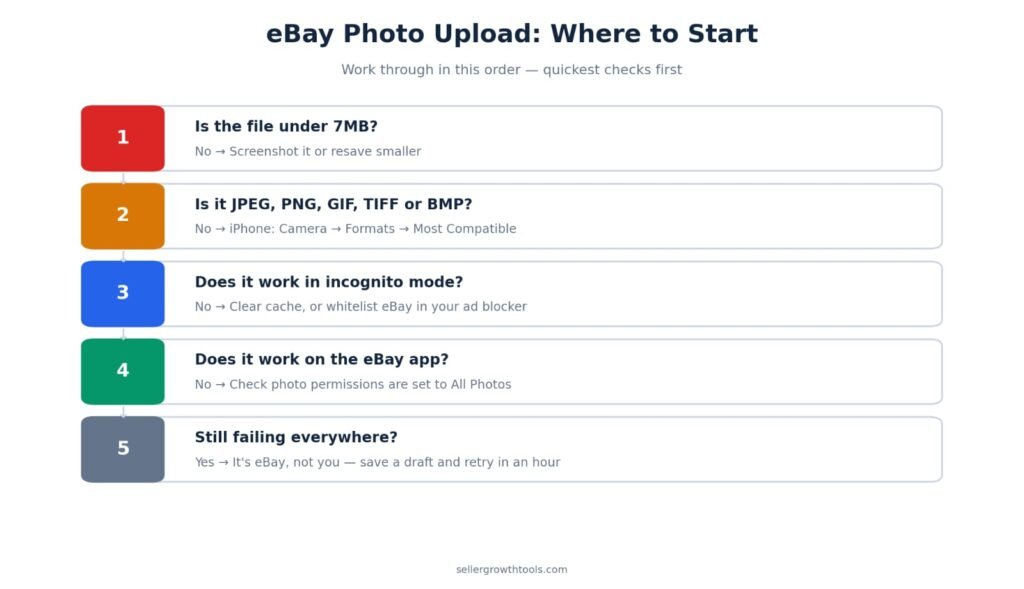
What eBay’s Error Messages Actually Mean
eBay’s upload errors are vague to the point of being unhelpful. Here’s what the common ones usually indicate, so you can skip straight to the relevant fix.
“Image cannot be processed” — nearly always format or corruption. Go to Fix 2.
“File is too large” — self-explanatory, but note this can also fire on files slightly under 7MB if your connection times out mid-upload. Go to Fix 1, then Fix 9.
“Image is too small” — dimensions, not file size. Go to Fix 3.
No error at all, spinner never stops — almost always browser-side: cache, ad blocker, or a dropped connection. Go to Fix 5.
Upload appears to work but the photo never appears — either processing lag or a saving problem. Skip to Photos Uploaded But Not Showing?
Photos disappeared days after listing — that’s a policy removal, not an upload failure. Skip to eBay Removed My Photos After Listing
Fix 1: Check Your File Size
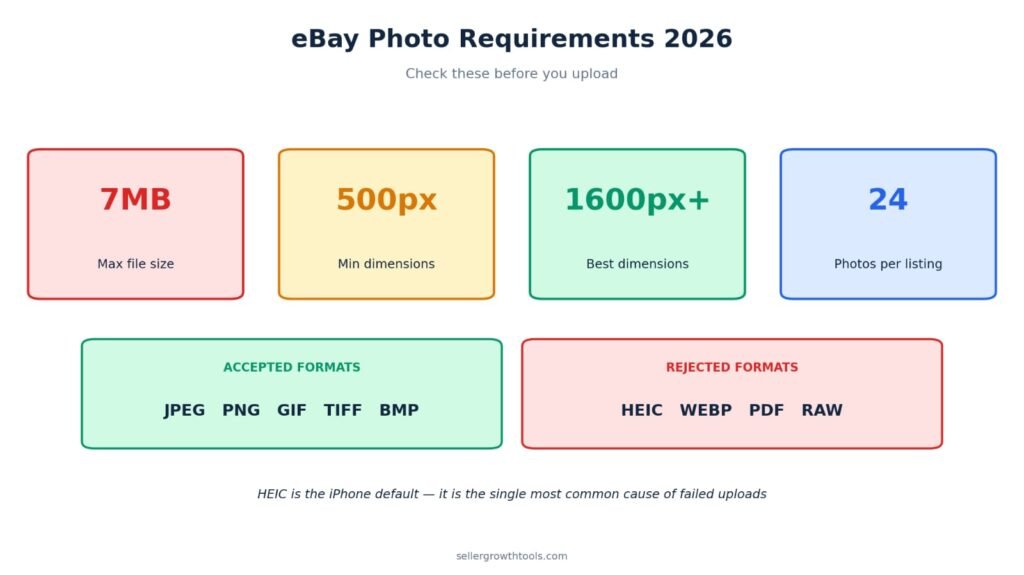
eBay’s limit is 7MB per image.
This is the single most common cause, and it has become more common as phone cameras have improved. A photo from a recent iPhone or Android in high quality can easily hit 8–12MB. It looks perfectly normal on your phone, and eBay rejects it — often without a clear message.
How to Check File Size on Every Device
Windows: right-click the file → Properties → look at Size.
Mac: right-click → Get Info → look at Size.
iPhone: open the Photos app, select the photo, swipe up (or tap the info icon). The file size shows in the details panel.
Android: open Gallery or Google Photos, tap the three-dot menu → Details. Size is listed there.
How to Reduce File Size Without Losing Quality
Several options, roughly in order of how fast they are:
Screenshot it. Crude but instant. Open the photo full screen, take a screenshot, upload the screenshot. Screenshots are compressed automatically and are typically well under 1MB. Quality loss is minimal at listing display sizes.
Resave in Paint (Windows). Open the image → Resize → set to 60–70% → Save As → JPEG. Takes about fifteen seconds.
Resave in Preview (Mac). Open → Tools → Adjust Size → reduce → File → Export → choose JPEG and drag the quality slider to around 70%.
Change your camera settings permanently. On iPhone: Settings → Camera → Formats → High Efficiency. On Android: open the camera app → Settings → drop the photo resolution one step. This prevents the problem recurring rather than fixing it one photo at a time.
Use the eBay app to take the photo. The app compresses images itself before uploading, which sidesteps the size problem entirely.
One thing worth knowing: you lose almost nothing meaningful by compressing. eBay re-compresses every image for display anyway, so an 11MB original and a 1.5MB version look effectively identical to your buyer.
Fix 2: Check Your File Format
eBay accepts JPEG, PNG, GIF, TIFF and BMP.
It does not accept:
HEIC — the default on iPhone since iOS 11
WEBP — common if you saved an image from a website
PDF — occasionally attempted, never works
RAW formats (CR2, NEF, ARW) from a dedicated camera
SVG or other vector formats
The HEIC Problem on iPhone
This deserves its own section because it’s responsible for a large share of failed uploads from iPhone sellers, and because most people don’t know their phone is even producing HEIC files.
Since iOS 11, iPhones save photos in HEIC by default. It’s a more efficient format — smaller files, same quality — but eBay doesn’t accept it. What makes it confusing is that iOS often converts HEIC to JPEG automatically when you share a photo, so it sometimes works and sometimes doesn’t, with no obvious pattern.
The permanent fix:
Settings → Camera → Formats → select Most Compatible. All new photos save as JPEG from that point on.
For photos you’ve already taken, three options:
Open the photo, tap Edit, make any trivial change (rotate one way then back), then save. iOS exports it as JPEG.
Take a screenshot of the photo. Screenshots are always PNG.
Email the photo to yourself — iOS converts on send — and download the attachment.
The WEBP Problem on Desktop
WEBP is Google’s image format, and it’s what you get when you right-click and save many images from websites. It’s efficient, widely used online, and rejected by eBay.
To convert on Windows: open in Paint → File → Save As → JPEG.
To convert on Mac: open in Preview → File → Export → set Format to JPEG.
A note on sourcing photos: if you’re taking product images from a supplier’s website, check you actually have the right to use them. Using another seller’s photos is a common route to a listing removal or an account issue — and eBay’s image-matching is better than most sellers assume.
Fix 3: Check Your Image Dimensions
eBay requires images to be at least 500 pixels on the longest side. Anything smaller is rejected outright.
This catches sellers who crop aggressively, or who save a small thumbnail from elsewhere and try to use it.
But hitting the minimum isn’t the goal. 1600 pixels on the longest side is where eBay’s zoom function activates, and zoom matters more than most sellers realise. Buyers who can zoom into a product photo are demonstrably more confident about what they’re buying — and on eBay, where a lot of stock is used or second-hand, that confidence directly affects whether they buy.
A listing where photos can’t zoom looks lower-quality to buyers even if they never consciously notice why.
The practical sweet spot is 1600–3000 pixels on the longest side. Above the zoom threshold, comfortably below the file size limit, and sharp on every screen your buyer might use.
Fix 4: Check Your Photo Doesn’t Break eBay’s Image Policy
This is the cause most guides miss entirely, and it’s a real one — particularly for sellers whose photos upload fine but then get removed later, or whose listings get flagged.
eBay has content rules for listing images, separate from the technical requirements. A photo can be exactly 2MB, perfect JPEG, 2000 pixels wide, and still be rejected because of what’s in it.
What eBay Rejects
Borders and frames. Decorative borders around the image are not permitted on the main photo.
Watermarks beyond basic attribution. eBay allows minimal watermarking for copyright purposes, but large logos, promotional overlays or contact details plastered across the image are not acceptable.
Text and graphics added to the image. Adding “FREE SHIPPING”, “SALE”, “BEST PRICE” or similar promotional text onto your photo violates the policy. So do added arrows, stars, badges and price callouts.
Placeholder images. “Photo coming soon”, stock template images, or a picture of anything other than the actual item.
Images below 500 pixels on the longest side — the technical minimum is also a policy requirement.
Images that aren’t the item. Catalogue photos of a similar item, when you’re selling a used one, are a problem — and a common cause of “item not as described” cases later.
What eBay Requires
The main photo must show the item on a plain, uncluttered background. White or a neutral light colour is standard.
The item must fill most of the frame without being cropped awkwardly.
Photos must be of the actual item you’re selling for used and second-hand goods. Stock images are only appropriate for genuinely new, sealed, identical products — and even then, adding real photos usually converts better.
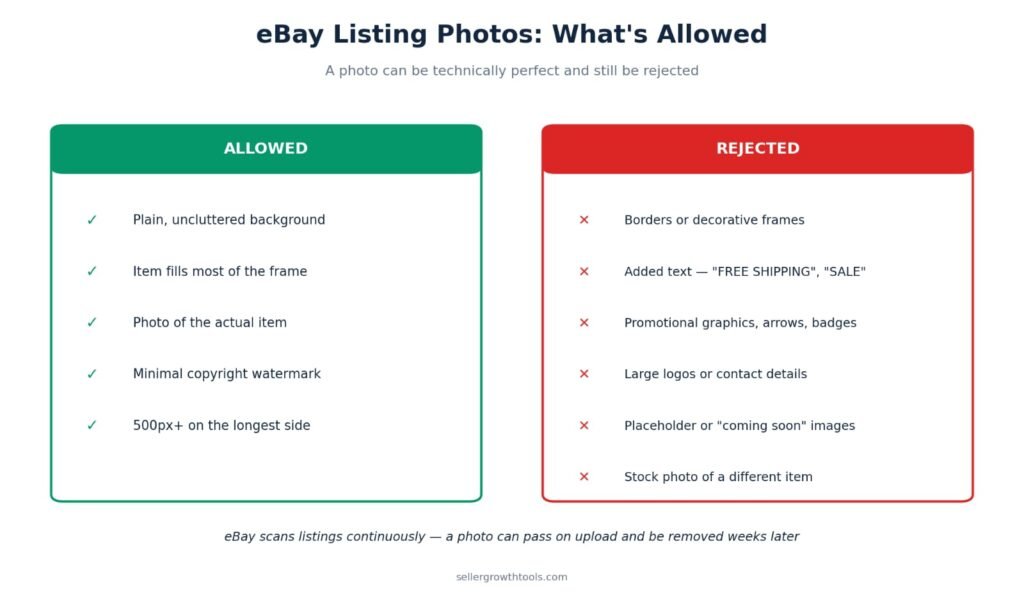
If your photo passes every technical check but still won’t go through, or goes through and disappears later, work down this list. It’s very often a text overlay or a border that the seller added months ago and stopped noticing.
Fix 5: Clear Your Browser Cache
A stale cache is the reason behind “it worked yesterday and doesn’t today.”
Your browser stores fragments of eBay’s site to load it faster. When eBay updates something and your browser is still holding the old version, the two disagree and the upload fails silently.
Chrome: three dots → Delete browsing data → select Cached images and files → Delete data.
Safari: Safari menu → Settings → Privacy → Manage Website Data → Remove All.
Firefox: Settings → Privacy & Security → Cookies and Site Data → Clear Data.
Edge: three dots → Settings → Privacy → Choose what to clear → tick Cached images and files.
Then — and this part matters — close the browser completely and reopen it. Clearing the cache without restarting often doesn’t take effect. Log back into eBay and try a single photo.
Fix 6: Try a Different Browser
If clearing the cache didn’t help, this is the fastest way to isolate the problem.
Open a different browser, or the same browser in incognito/private mode, log into eBay, and try uploading one photo.
Works in the other browser? The problem is your normal browser — most likely an extension (Fix 7), or a corrupted profile. Clearing cache and cookies fully, or creating a fresh browser profile, will sort it.
Fails everywhere? The problem is your file, your connection, or eBay. Move on.
Chrome and Safari are the safest choices for eBay. Less common browsers, or older versions, sometimes have upload behaviour eBay hasn’t tested against.
Fix 7: Disable Ad Blockers and Extensions
Ad blockers, privacy extensions and script blockers break file uploads regularly. They block the network request eBay uses to transmit your image, and eBay’s interface shows you nothing useful in response — just a spinner that never resolves.
The quick test: open eBay in incognito mode, where extensions are disabled by default. If uploads work there, you’ve found your culprit.
Most common offenders:
uBlock Origin, AdBlock Plus, AdGuard
Privacy Badger, Ghostery, DuckDuckGo Privacy Essentials
NoScript and similar script blockers
VPN browser extensions
Aggressive antivirus web-protection modules (Kaspersky, Avast and Norton browser extensions are common ones)
You don’t need to uninstall anything. Open the extension’s settings and whitelist ebay.co.uk (or ebay.com, whichever you sell on). Most have a “disable on this site” toggle that takes two clicks.
If you use a full VPN rather than a browser extension, try switching it off for the upload. VPN routing can slow large file transfers enough to trigger a timeout
Fix 8: Switch Between App and Desktop
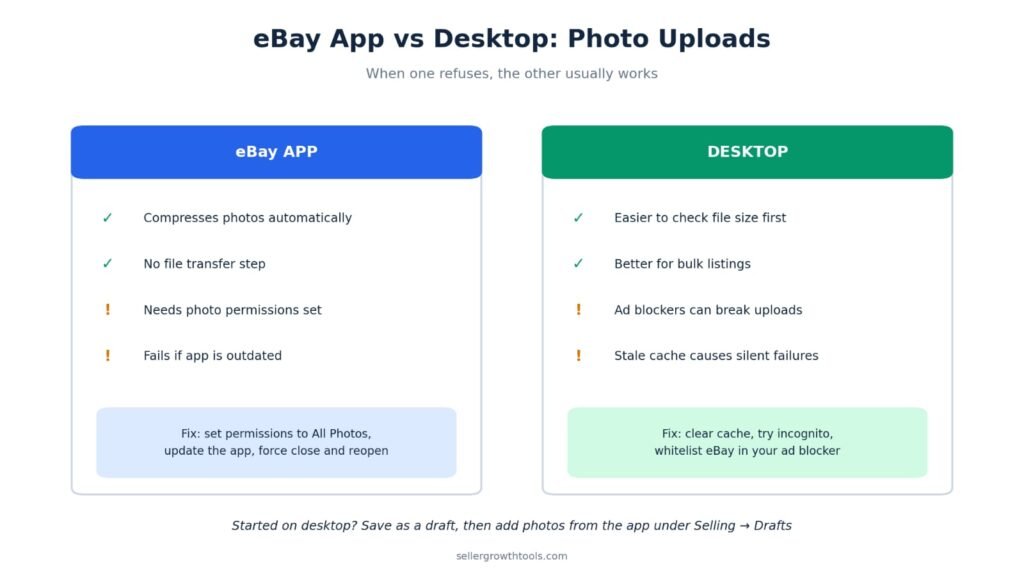
The eBay app and the desktop site handle uploads completely differently. When one refuses, the other very often works — and switching is faster than debugging.
If the eBay App Won’t Let You Add Photos
Check these in order:
- Photo permissions. This is the number one cause on mobile.
iPhone: Settings → eBay → Photos → set to All Photos
Android: Settings → Apps → eBay → Permissions → Photos → Allow all
“Selected Photos” or “Ask every time” causes uploads to fail silently, which makes it very hard to diagnose. - Update the app. Photo upload bugs appear regularly and get patched quickly. Check the App Store or Play Store.
- Force close and reopen. Swipe the app away entirely — backgrounding it isn’t enough.
- Clear the app cache (Android only). Settings → Apps → eBay → Storage → Clear Cache. Do not clear data, which logs you out.
- Switch network. Turn off Wi-Fi and use mobile data, or the reverse. Some routers, particularly on business or public networks, interrupt sustained uploads.
- Restart your phone. Genuinely worth doing before you spend an hour on anything else.
If Desktop Upload Hangs
Try the app instead. Take the photo on your phone and list from there — you skip the file transfer entirely, and the app compresses images automatically.
For a listing you’ve already started on desktop: save it as a draft, open the app, find it under Selling → Drafts, and add the photos there. The draft syncs across both.
Fix 9: Check Your Connection
Large files need a stable connection for the whole upload, not just at the start. A brief drop halfway through kills the transfer, and eBay usually reports nothing.
Signs it’s your connection:
Small photos upload fine, large ones fail
Uploads fail more often at busy times of day
Progress bar reaches 60–80% and then stalls
What to try:
Switch to a wired connection if you can. Ethernet is dramatically more stable than Wi-Fi for sustained uploads.
Move closer to the router, or restart it.
Check your upload speed, not download. Run a speed test and look at the upload figure specifically — most home connections have far slower upload than download, and it’s upload that matters here.
Stop other uploads. Cloud backup running in the background (iCloud, Google Photos, OneDrive) competes for the same bandwidth.
Try at a different time. Evening congestion is real on shared connections.
If you’re on a slow connection permanently, compressing images before upload isn’t optional — it’s the difference between listing and not listing.
Fix 10: Check You Haven’t Hit the Photo Limit
eBay allows up to 24 photos per listing, free of charge.
If you’re adding photos to an existing listing and nothing is happening, count what’s already there. At 24, eBay simply stops accepting more — frequently without displaying any error at all.
Also worth knowing: eBay’s bulk photo tool becomes unreliable above roughly a dozen images at once. If you’re uploading twenty, do them in batches of five or six. It’s slower to click through, but it works, and it’s faster than repeatedly retrying a failed batch of twenty.
Fix 11: Check Whether eBay Is Down
Sometimes it genuinely isn’t you, and it’s worth ruling this out before spending an hour on your own setup.
Where to check:
eBay’s system announcements page — official, but often slower to update than reality
Downdetector — search eBay and look at the last hour’s reports
eBay Community forums — sellers report problems there within minutes, usually before any official acknowledgement
X / Twitter — search “eBay down” and sort by latest
The clearest signal: if uploads fail in two different browsers, on the app, and on mobile data, the common factor is eBay, not you.
If eBay is having problems, save your listing as a draft and come back in an hour. There is nothing to fix on your side, and continuing to retry only wastes your time.
Fix 12: Problems With Bulk and Third-Party Tools
If you list at volume, your upload problem may not be eBay’s interface at all.
Seller Hub bulk listing tool. Photo upload through bulk edit is noticeably less reliable than the standard listing flow. If a bulk upload fails, try adding photos to one listing through the normal interface to confirm the photos themselves are fine.
eBay File Exchange. Images referenced by URL must be publicly accessible, served over HTTPS, and under the same size limits. A URL that requires a login, or one that’s http rather than https, fails silently. Test each URL in an incognito window first — if you can see the image without logging in, eBay can too.
Third-party listing software. Tools like inkFrog, Vendio, SixBit and similar have their own image handling, and their own failure modes. If photos upload fine directly to eBay but fail through your listing tool, the problem is the tool. Check for updates, re-authorise the eBay connection, and contact their support rather than eBay’s.
Picture Manager. eBay’s own image hosting occasionally degrades separately from the main site. If images you’ve previously uploaded stop displaying, this is often why.
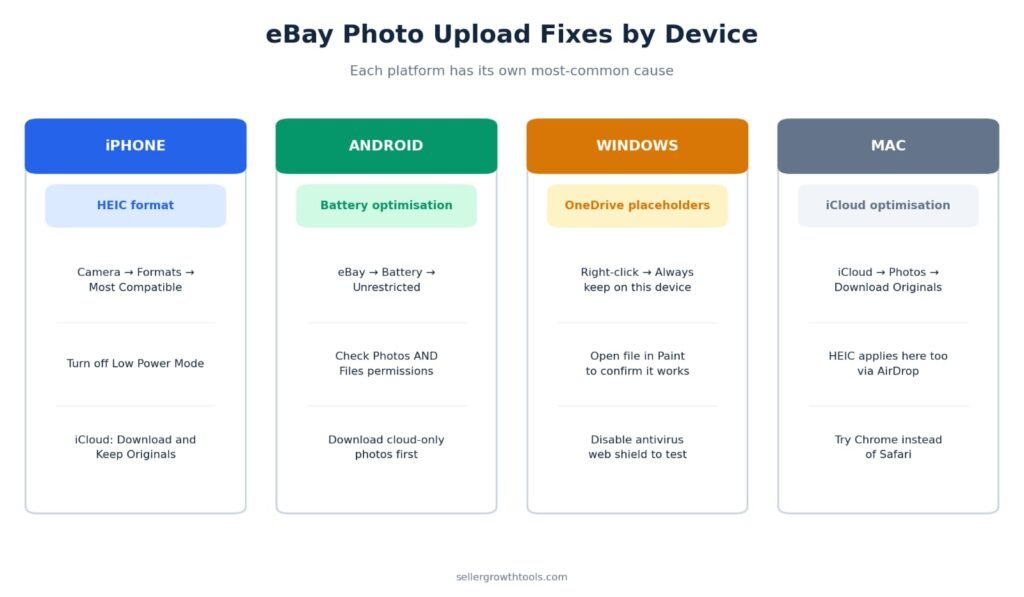
Device-Specific Fixes
The general fixes above cover most cases, but each platform has its own quirks
iPhone and iPad
The main issue is HEIC, covered in Fix 2. Beyond that:
Low Power Mode can throttle background uploads. Switch it off before listing.
iCloud Photos optimisation. If Settings → Photos → Optimise iPhone Storage is on, full-resolution photos live in iCloud rather than on your device. When you upload, the phone has to download the original first — which fails on a weak connection. Switch to Download and Keep Originals if you list regularly.
Live Photos sometimes cause problems. Turn Live off, or edit the photo to a still before uploading.
Android
Battery optimisation can kill the eBay app mid-upload. Settings → Apps → eBay → Battery → set to Unrestricted.
Storage permissions vary meaningfully by Android version and manufacturer. On Samsung and Xiaomi devices in particular, check both Photos and Files permissions.
Google Photos cloud-only images behave like iCloud optimisation — the file has to download before it can upload. Download it to the device first.
Windows
File Explorer thumbnails can mislead. A file that displays correctly may still be corrupted. Open it in Photos or Paint to confirm it actually opens.
OneDrive placeholder files are the Windows equivalent of the iCloud problem. A file with a cloud icon isn’t on your machine. Right-click → Always keep on this device before uploading.
Antivirus web shields — Avast, AVG and Kaspersky all have browser components that can block uploads. Try temporarily disabling web protection to test.
Mac
HEIC applies here too if the photo came from an iPhone via AirDrop or iCloud.
iCloud Photos optimisation works the same way as on iPhone. System Settings → Apple ID → iCloud → Photos → choose Download Originals to this Mac.
Safari’s cross-site tracking prevention occasionally interferes. Try Chrome to test.
eBay Photo Requirements at a Glance
Photos Uploaded But Not Showing?
Different problem, different fix. If the upload completed but the images aren’t appearing:
Wait ten minutes. eBay processes images after upload — resizing, generating thumbnails, creating zoom versions. On busy days this lags noticeably.
Hard refresh the listing page. Ctrl+Shift+R on Windows, Cmd+Shift+R on Mac.
Check the listing actually saved. If you added photos but navigated away without clicking Save or Revise, they’re gone. This is more common than it sounds, particularly when a session times out mid-edit.
View it logged out. Open the listing in an incognito window. Photos frequently display fine to buyers while your own cached view is stale — meaning there was never a problem at all.
Check on a different device. Same principle: rules out local caching.
If images still haven’t appeared after an hour, delete them from the listing and re-upload. It’s faster than continuing to wait.
eBay Removed My Photos After Listing — Why?
If photos uploaded successfully and then disappeared days later, that isn’t an upload failure. eBay removed them.
The usual reasons:
Policy violation. Text overlay, borders, watermarks, or promotional graphics — see Fix 4. eBay’s automated systems scan listings continuously, not only at the point of upload, so a photo can pass initially and be removed weeks later.
Copyright complaint. If you used a photo belonging to a manufacturer or another seller, the owner can report it through eBay’s VeRO programme. The image comes down and, if it happens repeatedly, your account can be affected.
Stock photo restrictions. In certain categories eBay requires actual photos of the actual item, and removes catalogue images.
Picture Manager expiry. Images hosted through eBay’s Picture Manager can expire under some subscription arrangements.
What to do: check your eBay messages and your Seller Hub notifications first — eBay usually explains the removal there. Fix whatever triggered it, then re-upload a compliant photo. Re-uploading the same image without changing it will simply get it removed again, and repeat violations count against your account.
How to Stop This Happening Again
Five habits that remove this problem permanently:
Set your phone camera to JPEG. iPhone: Settings → Camera → Formats → Most Compatible. This one change prevents the most common cause of failed uploads.
Keep photos between 1600 and 3000 pixels on the longest side. Above the zoom threshold, comfortably under the file size limit.
Whitelist eBay in your ad blocker once, and never think about it again.
Upload in batches of five or six, not twenty.
Keep photos clean. No text, no borders, no watermarks, no promotional graphics. It keeps you inside policy and, as a bonus, clean photos convert better — buyers trust an image that looks like a photograph rather than an advert.
A last suggestion for anyone listing at volume: build a small pre-listing routine. Take photos, check the format, resize to around 2000px, upload in small batches. Two minutes of process saves the hour you’d otherwise lose to troubleshooting.
Frequently Asked Questions
Why won’t my photos upload to eBay?
Usually the file is over 7MB, or it’s in a format eBay doesn’t accept — HEIC from an iPhone is the most common. Browser cache and ad blockers are the next most likely causes.
What size photos does eBay require?
At least 500 pixels on the longest side, and no larger than 7MB per file. For zoom to work, aim for 1600 pixels or more.
Does eBay accept HEIC files?
No. Change your iPhone camera format to Most Compatible so photos save as JPEG, or take a screenshot of the HEIC file and upload that instead
Why won’t the eBay app let me add photos?
Nearly always photo permissions. Set eBay’s photo access to “All Photos” rather than “Selected Photos” in your phone settings, then force close and reopen the app.
How many photos can you add to an eBay listing?
Up to 24, free of charge.
Why are my eBay photos not showing after upload?
eBay processes images after they upload, which can take several minutes. Hard refresh the page, and check the listing in incognito mode to rule out a stale cache on your end.
Why does eBay bulk photo upload keep failing?
The bulk tool becomes unreliable above roughly a dozen images at once. Upload in batches of five or six instead.
Can I upload photos from my phone to a listing I started on desktop?
Yes. Save the listing as a draft on desktop, open the eBay app, find it under Selling → Drafts, and add the photos there
Why did eBay remove my photos after I listed?
Most often a policy violation — text overlay, borders, watermarks or promotional graphics on the image. It can also be a copyright complaint if the photo belongs to someone else. Check your eBay messages for the specific reason.
Can I put text or my logo on eBay photos?
Minimal watermarking for copyright is permitted. Promotional text, price callouts, borders and added graphics are not, and can get the image or the listing removed.
What’s the best photo size for eBay listings?
Around 1600–3000 pixels on the longest side, saved as JPEG, under 7MB. That gets you zoom without risking the size limit.
Why do my photos upload on Wi-Fi but not mobile data, or vice versa?
Almost always a connection stability issue rather than a network type issue. Large files need a steady connection for the full upload — try compressing the image and uploading again.
Nine times out of ten it’s file size or format. Check those two before anything else, and you’ll solve most upload problems in under a minute.
If you’ve worked through every fix here and uploads still fail in multiple browsers and on the app, it’s eBay’s end rather than yours. Save your draft and come back in an hour.
And if your photos upload fine but keep disappearing later, go back to Fix 4 — it’s a policy issue, not a technical one, and no amount of browser troubleshooting will change that.
Once your listing is live, work out what you’ll actually take home:
eBay Fee Calculator · eBay ROI Calculator
Related Guides
Check the file before you upload it, and resize in one click if it fails.
Photos affect ranking as well as conversion — here’s what else matters.
Another eBay error code with an unhelpful message — explained properly.
Sometimes a listing fails because of limits, not the photos.
Listing quality standards that affect your seller status.
Related Guides
Check the file before you upload it, and resize in one click if it fails.
Photos affect ranking as well as conversion — here’s what else matters.
Another eBay error code with an unhelpful message — explained properly.
Sometimes a listing fails because of limits, not the photos.
Listing quality standards that affect your seller status.
|
MU
|
Written by Muhammad Usman eCommerce Specialist · eBay Seller & SEO Expert Muhammad manages eCommerce operations and SEO for UK sellers across eBay, Etsy, Shopify and TikTok Shop. He built SellerGrowthTools after spending too many hours troubleshooting the same listing problems — the ones eBay’s own help pages never quite answer. |