Before you list anything on eBay, you want to know one thing: what does this actually sell for?
Not what other sellers are asking — anyone can ask any price, and plenty of listings sit unsold for months. What matters is what buyers have genuinely paid.
eBay shows you this, for free, and it takes about ten seconds once you know where to look. Here’s how to find sold items on eBay on desktop and in the app, plus how to read the numbers properly once you’ve got them.
The Quick Version
Desktop: search the item → scroll down the left sidebar → tick Sold Items
App: search the item → tap Filter → scroll to Sold Items → toggle on
That’s it. Sold listings help you identify prices associated with completed sales. However, the displayed price may not always reflect the final amount paid, particularly when a seller accepts a Best Offer.
| What you want | Desktop | App |
|---|---|---|
| View sold items | Yes | Yes |
| View completed listings | Yes | Limited |
| See accepted Best Offer price | Often hidden | Often hidden |
| History available | ~90 days | ~90 days |
| Where the filter lives | Left sidebar | Filter → scroll down |
How to Find Sold Items on Desktop
To find eBay sold listings on a desktop, use the Sold Items filter in eBay search results. This lets you check recently sold products, compare selling prices, and research what buyers are purchasing before creating your own listing. You can also use these results to evaluate demand and identify a realistic price range for similar items.
Go to eBay and search for your item as normal On the results page, look at the left sidebar Scroll down past Condition, Price and Buying Format Find Show only and tick Sold Items Results reload showing only completed sales, with prices in green
A faster route: once the sold filter is on, the URL contains &LH_Sold=1. Bookmark a search with that in it and you skip the clicking entirely.
Sort by most recent. eBay defaults to Best Match, which mixes old sales in with new ones. Change the sort to Ended: recently so you’re looking at current prices rather than what something went for three months ago.
The same steps work on every eBay site — eBay.co.uk, eBay.com, eBay.com.au and eBay.ca all use the identical filter. If you’re selling in the UK and want UK sales specifically, set Item Location to United Kingdom as well, or you’ll be pricing against a different market.
How to Find Sold Items in the eBay App
The app hides this more than the desktop site does, which is why so many people assume it isn’t there.
Search for your item
Tap Filter (top right on most versions)
Scroll down — past Category, Condition, Price
Find Sold Items and toggle it on
Tap Apply or Done
If you can’t find the toggle: update the app. eBay moves this option between versions, and older builds sometimes bury it further than current ones.
If the Sold Items filter is missing in the eBay app, try opening eBay in your phone’s web browser. Search for the item and check the available filters. The mobile website layout may differ from the desktop version, so you may need to request the desktop site in your browser to access additional search options.
Sold vs Completed Listings: What’s the Difference?
These get used interchangeably and they aren’t the same thing.
Sold listings — items that actually sold. Someone paid. These are the ones you want.
Completed listings — every listing that ended, whether it sold or not. That includes items nobody bought.
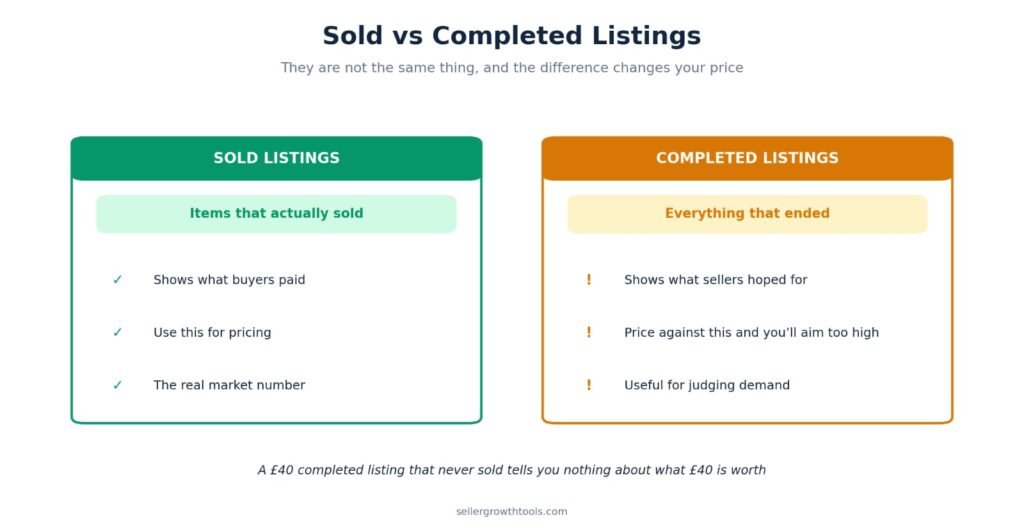
Why the difference matters: Sold listings help you identify prices associated with successful sales, while completed listings also include items that ended without selling. Comparing both can help you understand pricing and demand. However, unsold listings do not necessarily mean an item was overpriced, and accepted Best Offer prices may not always be visible
That said, completed listings have one genuine use. If you see twenty completed listings and only three sold, that’s a demand signal worth knowing — the item is harder to shift than the sold prices alone suggest.
How Far Back Does eBay’s Sold History Go?
Around 90 days through the standard search filter.
If you want to check eBay sold items history or research eBay sold price history, start by searching for your product and enabling the Sold Items filter. This helps you compare recent sales of similar items, identify common selling prices, and understand how much buyers have been willing to pay. For longer-term historical sales data, eBay Product Research (formerly Terapeak) offers additional research options.
For many everyday products, recent sold listings provide a useful starting point for pricing research. However, prices can change significantly within three months due to seasonal demand, product availability, market trends, and competition. Always prioritize recent sales of comparable items when estimating a realistic selling price.
Where 90 days becomes a limitation:
Seasonal items. Looking at Christmas decorations in June gives you off-season prices.
Rare items. If something only sells a few times a year, 90 days may show you nothing at all.
Trend tracking. You can’t see whether a price is rising or falling over a year.
For longer history you need eBay’s own research tool, Terapeak, which goes back considerably further and adds category-level trend data. That’s covered in our eBay Terapeak Guide.
For everyday pricing decisions, the free 90-day view does the job.
Can You See Accepted Best Offer Prices?
Not always — and this is the biggest blind spot in eBay’s sold data.
When an item sells through Best Offer, eBay often shows the original listing price with the note “Best offer accepted” rather than the price actually agreed. The number you’re looking at is what the seller asked, not what the buyer paid.
Why this matters: An accepted Best Offer may be lower than the original asking price, but the discount varies by item, category, and seller. If eBay displays the original listing price instead of the accepted offer amount, you should not assume that the displayed price is the final transaction price. If a category has a lot of Best Offer listings, the sold prices you’re seeing are systematically higher than reality — and you’ll price too optimistically.
How to spot it: look for “Best offer accepted” under the price on sold listings. Where you see it, treat the figure as a ceiling rather than the real sale price.
What to do about it:
Weight your average toward the fixed-price sales, where the number shown is the number paid
Avoid assuming a fixed discount on Best Offer sales. If the accepted price is not visible, compare similar fixed-price sales and use eBay Product Research for additional pricing data where available. Use eBay Product Research (formerly Terapeak) to review additional sales data, including accepted Best Offer prices where available. This can help you make more informed pricing decisions.
When researching items sold through Best Offer, standard sold listings may not always reveal the accepted transaction price. This can make price comparisons less reliable, particularly for items with frequent negotiations. For additional historical pricing information, see our eBay Terapeak Guide, which explains how to use eBay Product Research.
If you’re the one running Best Offer on your listings, our eBay Best Offer Guide covers setup, and the Counter Offer guide covers how the negotiation itself works.
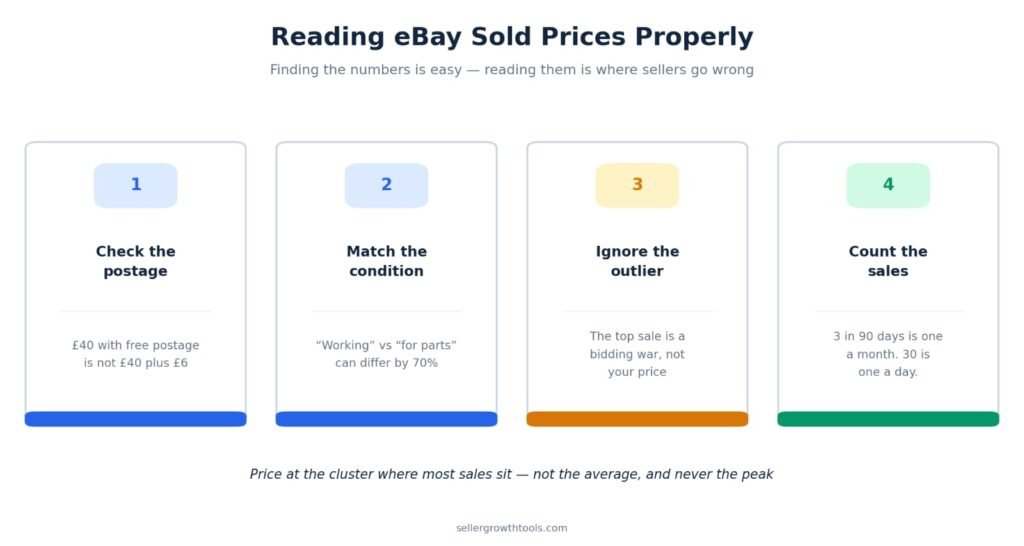
Reading Sold Prices Properly
Finding the numbers is the easy part. Reading them correctly is where people go wrong.
Check what postage was charged
A £40 sale with free postage is not the same as a £40 sale with £6 postage on top. The buyer paid £46 in the second case, and the seller received more.
Always look at the total the buyer paid, not the headline price.
Look at condition, not just the title
An item’s condition can significantly affect its resale value. For example, a fully working product may sell for much more than one listed for parts or repair. Original packaging, included accessories, cosmetic condition, and tested functionality can also influence the final selling price. Compare sold listings with similar conditions and features to estimate a realistic price.
Filter by condition to match what you’re actually selling, or you’ll be comparing against something else entirely
Ignore the outliers
There’s almost always one sale far above the rest — a bidding war between two determined buyers, or a listing that happened to catch someone at the right moment.
That number is not your price. Look at the cluster where most sales sit, not the peak.
Count how many actually sold
Count how many comparable items sold during the selected period. For example, three sold listings over 90 days suggest relatively limited recorded sales, while 30 sold listings indicate more frequent transactions. However, sold-listing counts alone do not establish total market demand or sell-through rate. Compare them with the number of competing listings and consider differences in item condition, price, and availability. That difference should change how you price. A slow-moving item priced at the top of the range may sit for months. Pricing slightly under the cluster on a fast-moving item usually sells within days.
Turning Sold Prices Into Your Listing Price
Sold data gives you the market. It doesn’t give you your price — that depends on your costs.
Work through it in this order:
Find the cluster. Where do most sales sit? That’s your realistic range.
Adjust for your condition and completeness. Better than average, price at the top of the cluster. Worse, price below it.
Check your floor. Subtract your product cost, postage, packaging and eBay’s fees. What’s left?
Compare the two. If the market price is below your floor, don’t list it — no pricing strategy fixes an item you paid too much for.
That third step catches sellers out constantly. A £40 sale looks healthy until fees and postage leave £27 against a £25 cost.
Our eBay Fee Calculator shows your net payout at any price, so you can see exactly where the market range stops working for you. If you’re weighing up whether an item is worth sourcing at all, the eBay ROI Calculator works backwards from the sold price to the maximum you should pay for stock.
Why You Might Not See Sold Listings
A few reasons the filter might seem to be missing or empty:
You’re in the app and haven’t scrolled far enough in the filter menu — it sits below Condition and Price
Your search is too specific. A long, exact model number may genuinely have no sales in 90 days. Broaden the search.
Nothing has sold in 90 days. For rare items this is common, and it’s information in itself.
The app version is outdated. Update it, or use the browser instead.
You’re browsing a category page rather than search results. The sold filter only appears on search results.
You don’t need an account to view sold listings. It works logged out, in a private window, on any device.
When Sold Data Isn’t Enough
Sold listings answer one question well: what has this sold for recently?
They don’t answer:
Is demand rising or falling? You need longer history for that.
How long did each item take to sell? Sold listings show the sale, not the wait.
What else in this category is selling? Sold search only shows what you searched for.
Should I be sourcing this at all? That’s a sourcing question, not a pricing one.
For those, you need proper research tools. eBay Product Research (formerly Terapeak) provides additional historical sales and pricing data beyond standard sold-listing searches. It is available to eligible sellers through eBay’s selling tools without requiring a paid Store subscription. See our eBay Terapeak Guide for step-by-step instructions.
But for the everyday question of what to charge, the free sold filter is genuinely all most sellers need.
How to Use Sold Data for Q4 and Seasonal Pricing
Sold listings become more valuable — and more misleading — during Q4. Understanding the difference is what separates sellers who price well in peak season from those who either leave money on the table or sit on unsold stock in January.
Why seasonal timing changes everything
Because eBay’s standard sold-listing search generally covers recent sales, researching seasonal products in October may show transactions from the previous summer months. These prices may not reflect demand during the upcoming holiday season. Products such as Christmas decorations, toys, gifts, and winter clothing can experience significant price changes as seasonal demand increases or decreases.
The reverse is equally true. If you’re researching in January, you’re seeing peak December prices that no longer reflect reality.
The rule: for seasonal items, look at sold data from the same time last year, not the last 90 days. Terapeak’s longer history makes this possible — the free 90-day filter doesn’t go back far enough.
What to check before Q4
Before peak season starts — ideally September — run sold searches on your planned Q4 inventory:
- What did these items sell for last October and November?
- How quickly did they sell — were listings ending within days, or sitting for weeks?
- Were sellers running out of stock, or were there always plenty available?
That last point is the most important. A product with strong sell-through in October-November and thin competition is worth stocking more heavily. A product where dozens of sellers had unsold stock going into December is one to be cautious with.
Pricing strategy for Q4 sold data
Consider adjusting your Q4 listing prices based on current demand, recent comparable sales, available inventory, and competitor pricing. Some seasonal products may support higher prices during peak shopping periods, but demand and competition vary by category. Avoid raising prices solely because it is Q4, and make sure your expected selling price still covers eBay fees, shipping, and product costs.
Watch sell-through rate alongside selling price. A product with strong sales relative to available listings may indicate healthier demand than one with a higher asking price but limited sales. Compare similar products over the same period, and consider competition, inventory costs, shipping expenses, and potential profit before deciding what to stock for Q4.
Factor in eBay’s fees before committing to stock. A strong Q4 sold price only works if the margin clears your costs after fees and postage.
For the full Q4 strategy: eBay Q4 Selling Guide
Frequently Asked Questions
How do I find sold items on eBay?
Search for the item, then tick Sold Items in the left sidebar on desktop, or toggle it on under Filter in the app. Prices show in green.
How far back does eBay’s sold history go?
Around 90 days through the standard search filter. Terapeak goes back further.
What’s the difference between sold and completed listings on eBay?
Sold listings actually sold. Completed listings include everything that ended, sold or not. Use sold listings for pricing.
How do I see sold items on the eBay app?
Search, tap Filter, scroll down to Sold Items and toggle it on. If you can’t find it, update the app or use eBay in your phone’s browser instead.
Can you see how much something sold for on eBay?
Yes, eBay’s Sold Items filter shows prices for completed sales, helping you estimate what buyers have paid for similar products. However, the displayed price may not reflect the actual accepted amount for Best Offer transactions. Check shipping charges separately when comparing sold prices.
Do I need an account to see sold listings?
No. It works logged out, including in a private browsing window.
Why can’t I see sold listings on eBay?
Usually you haven’t scrolled far enough in the app filter menu, your search is too narrow, or nothing has sold in the last 90 days. It also only works on search results, not category pages.
How do I find sold items on eBay UK?
Exactly the same way — the sold filter works identically on eBay.co.uk. Make sure your location filter is set to UK if you want UK sales specifically.
Should I price at the average sold price?
Not automatically. Look at where most sales cluster, adjust for your item’s condition, then check the price still clears your costs after fees and postage.
Can I see how long an item took to sell?
Not directly from sold listings. You’d need Terapeak or another research tool for sell-through timing.
Can you see the accepted Best Offer price on eBay?
Often not. eBay frequently shows the original asking price with “Best offer accepted” underneath rather than the agreed figure. Treat those numbers as a ceiling, not the real sale price.
Does the sold filter work the same on eBay.co.uk?
Yes, identically. Set Item Location to United Kingdom if you want UK sales specifically.
Why are sold prices shown in green on eBay?
It’s just eBay’s visual signal that the listing has ended in a sale rather than being live. Green means sold; black means the item is still available to buy.
Sold listings are the closest thing eBay gives you to a free market price, and most sellers either don’t know the filter exists or read the numbers carelessly once they find it.
Find the cluster, adjust for condition, and check the price still works after your costs. That’s the whole method.
Check your numbers before you list:
eBay Fee Calculator | eBay ROI Calculator | eBay image Checker Resizer
Related Guides
Goes further than the 90-day search — full sold history and demand data.
Turn a sold price into a buy price you can actually profit from.
How to use sold data to plan inventory and pricing for peak season.
Copying what sold only works if your listing gets seen in the first place.
Sold prices often sit below asking price — this explains the gap.
What a sold price actually leaves you with after eBay takes its cut.
Check your limits before you source stock based on sold data research.
|
MU
|
Written by Muhammad Usman eCommerce Specialist · eBay Seller & SEO Expert Muhammad Usman manages eCommerce operations and SEO for UK sellers across eBay, Etsy, Shopify and TikTok Shop. He prices client inventory against sold data every week, and has watched more money lost to a misread sold listing than to any pricing strategy. |