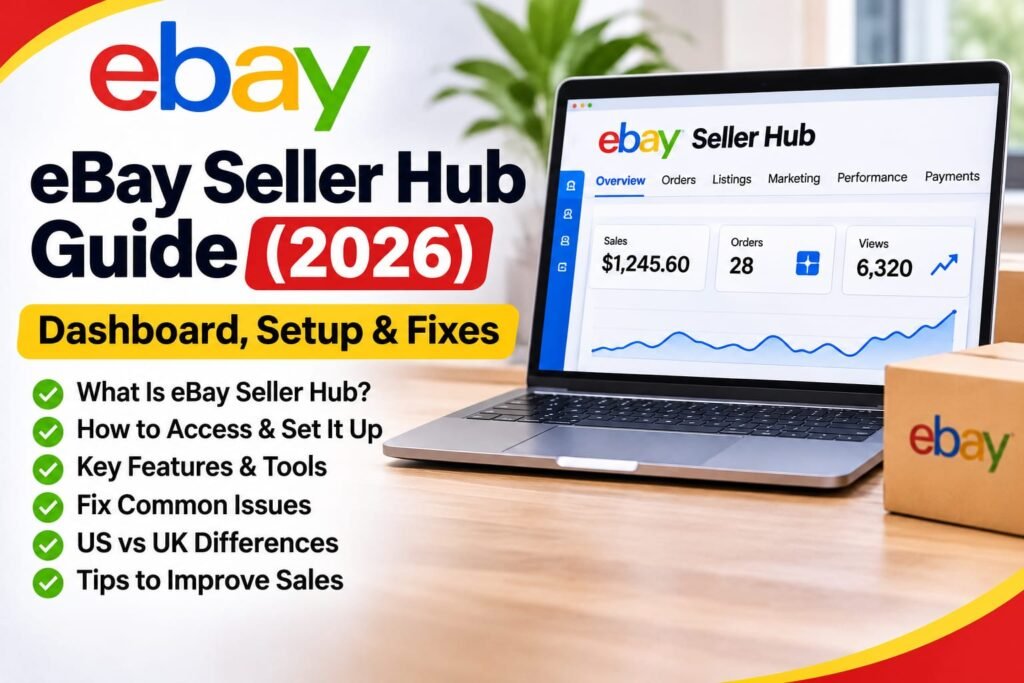
Managing an eBay business involves more than creating product listings. Sellers need to process orders, track payments, manage inventory, monitor performance, and identify opportunities to improve sales. eBay Seller Hub brings these essential selling tools together in one centralized dashboard, making it easier to manage daily operations.
Whether you’re a new seller in the United States or an experienced UK eBay seller, understanding how Seller Hub works can help you save time and make informed business decisions.
In this 2026 guide, you’ll learn how to access eBay Seller Hub, navigate its dashboard, manage listings and orders, review payments and performance reports, and fix common problems such as Seller Hub missing or not loading.
Key Takeaways
- eBay Seller Hub is a free dashboard that helps sellers manage listings, orders, payments, and business performance.
- Sellers can access tools for inventory management, sales reports, advertising, and product research.
- The core Seller Hub dashboard does not require a paid eBay Store subscription.
- Seller Hub access and available features may depend on your account eligibility and marketplace.
- If Seller Hub is missing or not loading, check your account access, browser, and eBay notifications.
- This guide covers Seller Hub features, setup, and common troubleshooting steps for US and UK sellers.
What Is eBay Seller Hub?
eBay Seller Hub is a centralized selling dashboard that helps eBay sellers manage their online business from one place. Instead of navigating multiple pages, sellers can access important tools for managing listings, processing orders, tracking payments, monitoring performance, and researching products.
Seller Hub is designed for both new and experienced sellers who want to organize their daily selling activities and make informed business decisions.
With eBay Seller Hub, sellers can:
- Create, edit, and manage product listings.
- View orders and manage shipping activities.
- Track transactions, selling fees, and payouts.
- Monitor sales performance and listing traffic.
- Access advertising and marketing tools when eligible.
- Research products and analyze market trends.
- Download reports and manage inventory more efficiently.
The core Seller Hub dashboard is free to use, although certain advanced features, subscriptions, and advertising services may involve additional costs or eligibility requirements.
How to Access eBay Seller Hub
Accessing eBay Seller Hub is straightforward once your selling account is eligible. You can open the dashboard directly through eBay or navigate to it from your account’s selling section.
Whether you’re selling on eBay.com in the United States or eBay.co.uk in the United Kingdom, Seller Hub provides a central place to manage listings, orders, payments, and performance. However, the available features and navigation options may vary depending on your marketplace and account status.
Below are the main ways to access eBay Seller Hub and what to check if the dashboard is not available.
Method 1: Open eBay Seller Hub Directly
The easiest way to access eBay Seller Hub is through eBay’s official dashboard link. This method allows eligible sellers to open their selling tools without searching through multiple account menus.
Follow these steps:
- Visit the official eBay Seller Hub
- Sign in using your eBay account credentials.
- Once signed in, the Seller Hub dashboard should appear if your account has access.
- Use the available navigation tabs to manage listings, orders, payments, and performance reports.
For UK sellers: Sign in through eBay.co.uk and open Seller Hub from your selling account.
If the dashboard does not appear, check your account eligibility and sign-in status. A missing Seller Hub page does not necessarily mean your eBay account is restricted.
Method 2: Access Seller Hub Through My eBay
You can also access eBay Seller Hub through your My eBay account. This method is useful if you prefer navigating from eBay’s main website rather than using a direct link.
Follow these steps:
- Visit eBay.com and sign in to your account.
- Click My eBay in the top navigation.
- Select Selling from the available menu.
- If Seller Hub is enabled for your account, the selling dashboard or an option to access Seller Hub should appear.
- Open Seller Hub to manage your listings, orders, payments, and performance.
For UK sellers: Follow the same general process on eBay.co.uk
Note: eBay may change its navigation menus over time. If you cannot find Seller Hub through My eBay, try the official direct link explained in Method 1.
Who Can Use eBay Seller Hub?
Bay Seller Hub is designed for individuals and businesses that sell products on eBay. It provides tools to manage listings, process orders, monitor sales, and track seller performance from one dashboard.
Both casual sellers and professional sellers can use Seller Hub, provided their accounts meet eBay’s applicable eligibility requirements.
Seller Hub is useful for:
- New eBay Sellers: Learn how to manage listings, orders, and basic selling activities.
- Individual Sellers: Organize occasional sales and monitor payments.
- Business Sellers: Manage inventory, orders, and business performance.
- High-Volume Sellers: Use reporting and bulk management tools to handle larger inventories.
- US and UK Sellers: Access marketplace-specific selling tools and reports.
According to eBay’s general guidance, sellers normally need at least one completed sale to access Seller Hub, although enrollment arrangements can vary by account type and marketplace.
Important: A paid eBay Store subscription is not required to use the core Seller Hub dashboard. However, some advanced features may have additional eligibility requirements or costs.
eBay Seller Hub Free?
Yes, eBay Seller Hub is free to use. Eligible sellers can access the core Seller Hub dashboard without purchasing a paid eBay Store subscription.
Seller Hub provides tools for managing listings, processing orders, tracking payments, and reviewing business performance. However, free access to the dashboard does not mean that selling on eBay is completely free.
Depending on your marketplace, account type, and selling activities, you may still pay:
- Selling Fees: Applicable transaction fees and other charges under eBay’s current fee policies.
- Advertising Fees: Charges for optional advertising campaigns, depending on the advertising product and billing model.
- Store Subscription Fees: Monthly or annual charges if you choose an eligible paid eBay Store or Shop subscription.
- Optional Service Fees: Charges for certain additional selling services or features.
Important for US and UK sellers: eBay’s selling fee structures differ between marketplaces. UK private sellers may qualify for different fee arrangements than business sellers, while US sellers follow their applicable US fee policies.
In short, the core eBay Seller Hub dashboard is free, but selling-related fees and optional services may still apply.
Understanding the eBay Seller Hub Dashboard
The eBay Seller Hub dashboard brings essential selling tools together in one organized interface. Instead of switching between different pages, sellers can manage listings, process orders, review payments, track business performance, and access research tools from a central location.
Seller Hub is divided into several sections, each designed to help sellers handle a specific part of their eBay business. Understanding these sections can save time, improve daily workflow, and make it easier to identify areas that need attention.
The main Seller Hub sections include:
- Overview: Monitor selling activity and important tasks.
- Orders: Manage purchases, shipping, returns, and buyer requests.
- Listings: Create, edit, and manage product listings.
- Marketing and Advertising: Access eligible promotional tools and advertising campaigns.
- Performance: Review sales, traffic, and seller performance metrics.
- Payments: Track transactions, selling expenses, and payouts.
- Research: Analyze product demand and market trends.
- Reports: Access reporting and supported bulk management tools.
The exact navigation tabs and available features may vary depending on your eBay marketplace, account type, and eligibility.
Overview: Your Selling Dashboard
The Overview tab in eBay Seller Hub provides a quick snapshot of your selling activities. It helps sellers identify important tasks, monitor recent business performance, and access commonly used selling tools without navigating through multiple pages.
Depending on your account settings and marketplace, the Overview dashboard may display:
- Orders Awaiting Shipment: Identify sold items that still need to be dispatched.
- Sales Activity: Review recent sales and business performance summaries.
- Active Listings: Monitor the products currently available for purchase.
- Seller Performance: Access information about your seller level and account performance.
- Traffic Insights: Review available listing visibility and traffic statistics.
- Account Notifications: Check important messages, alerts, and selling-related updates.
How to Use the Overview Dashboard Effectively
Start each selling day by checking orders that require immediate attention, reviewing important account notifications, and identifying listings that may need updates.
For sellers managing multiple products, regularly reviewing the Overview tab can help organize daily operations and reduce the risk of overlooking important selling tasks.
Pro Tip: Prioritize pending orders and buyer-related issues before creating new listings. Consistent order management is essential for maintaining a reliable selling experience.
Orders: Manage Sales and Shipping
The Orders tab in eBay Seller Hub helps sellers manage purchases, track shipments, and handle important order-related activities. It provides a central location to review sales and identify orders that require action.
With the Orders tab, sellers can:
- View Orders: Check recent and completed sales.
- Manage Shipments: Identify orders awaiting dispatch and update shipping details.
- Add Tracking Information: Upload valid tracking numbers when applicable.
- Purchase Shipping Labels: Buy and print supported shipping labels directly through eBay.
- Manage Returns: Review return requests and take appropriate action.
- Handle Cancellations: Review and manage eligible order cancellation requests.
- Review Order History: Access details of previous transactions.
How to Process an Order in Seller Hub
- Sign in to your eBay Seller Hub account.
- Open the Orders tab.
- Find the order awaiting shipment.
- Confirm the item, quantity, and buyer’s delivery details.
- Package the item securely.
- Purchase a supported shipping label or arrange shipping through your chosen carrier.
- Add valid tracking information when applicable.
- Dispatch the order within your stated handling time and update its shipping status accurately.
Important: Always use the correct shipping address provided in the order details and follow eBay’s applicable shipping requirements. Accurate tracking and timely dispatch can help reduce delivery disputes and protect your seller performance.
Listings: Create and Manage Products
The Listings tab in eBay Seller Hub allows sellers to create, edit, organize, and manage their product listings from one place. Whether you’re selling a few items or managing a large inventory, this section helps you keep your listings accurate and up to date.
With the Listings tab, sellers can:
- Create New Listings: Add products with titles, descriptions, photos, prices, and shipping details.
- Edit Active Listings: Update eligible listing details, including prices, quantities, and item specifics.
- Manage Drafts: Save unfinished listings and complete them later.
- Schedule Listings: Prepare listings for publication at a later date when the feature is available.
- Relist Unsold Items: Relist eligible ended listings.
- End Listings: Remove products that are no longer available.
- Bulk Edit Listings: Make supported changes to multiple listings at once.
How to Create a Listing in Seller Hub
- Sign in to eBay Seller Hub.
- Open the Listings tab.
- Select Create listing or the equivalent option.
- Enter a clear, relevant product title.
- Choose the most appropriate eBay category.
- Upload high-quality photographs showing the actual item.
- Complete the required item specifics and accurately describe the item’s condition.
- Set your price, quantity, shipping options, and return settings.
- Review all listing details before publishing.
- Select List it to publish the listing.
Pro Tip: Use accurate product titles, complete item specifics, and clear photographs to help buyers understand your products. Avoid keyword stuffing or misleading descriptions, as these can create buyer confusion and listing policy issues.
Important: Some listing revisions may be restricted when an item has bids, offers, or other active transaction activity. Available options depend on the listing format and eBay’s current rules.
Performance: Track Your eBay Business
The Performance tab in eBay Seller Hub helps sellers understand how their eBay business is performing. It provides access to sales reports, listing traffic insights, selling costs, and seller performance information.
By reviewing these reports regularly, sellers can identify opportunities to improve their listings, monitor expenses, and address potential account performance issues.
Key performance metrics to monitor include:
- Sales Performance: Review sales trends and revenue over selected periods.
- Listing Impressions: See how often your listings appear in eligible eBay search results and other placements.
- Click-Through Rate (CTR): Understand how frequently shoppers click your listings after seeing them.
- Listing Page Views: Monitor visits to your product listings.
- Sales Conversion Rate: Evaluate how effectively listing traffic results in purchases.
- Selling Costs: Review available reports showing fees and other selling expenses.
- Seller Level: Check whether your account is Below Standard, Above Standard, or Top Rated.
How to Check Performance in Seller Hub
- Sign in to your eBay account and open Seller Hub.
- Select the Performance tab.
- Open the relevant report, such as Sales, Traffic, or Seller Level.
- Choose an available date range to review your results.
- Compare important metrics and identify areas that need improvement.
Pro Tip: If your listings receive many impressions but very few clicks, review their titles, main images, and prices. If shoppers click but rarely purchase, examine your total price, shipping terms, item condition, and listing details.
Important: Sales performance and seller standards are different measurements. Strong sales do not automatically guarantee a Top Rated seller level. eBay evaluates seller standards using specific policy-defined metrics.
Payments: Track Transactions and Payouts
The Payments tab in eBay Seller Hub helps sellers monitor their financial activities, including completed transactions, selling fees, refunds, and payouts. It provides a convenient way to understand how money moves through your eBay selling account.
With the Payments tab, sellers can:
- View Transactions: Review payments associated with completed sales and other account activities.
- Track Payouts: Check upcoming, processing, and completed payouts.
- Review Selling Fees: Examine applicable fees and deductions recorded in payment transactions.
- Monitor Refunds: Review refunds and related payment adjustments.
- Check Funds on Hold: Identify payments that are temporarily unavailable and review any explanation provided by eBay.
- Download Reports: Access available transaction and payout reports for bookkeeping.
How to Check Your eBay Payouts
- Sign in to your eBay account and open Seller Hub.
- Select the Payments tab.
- Open the Payouts section.
- Review the status and amount of your payouts.
- Select a payout to examine its available details and associated transactions.
- If a payout is delayed, check for payment holds, verification requests, or account notifications.
Pro Tip: Compare your sales revenue with selling fees, shipping expenses, product costs, and other business expenses to calculate your actual profit. Your payout amount is not necessarily your net profit.
Important: Payout processing times, available payment methods, and payment holds can vary depending on your marketplace, account status, and banking arrangements. Always check the information displayed in your eBay account.
Research: Find Products and Analyze Demand
The Research tools in eBay Seller Hub help sellers explore product demand, analyze historical sales data, and make more informed sourcing and pricing decisions.
One of the key tools is Product Research (formerly Terapeak Product Research), which allows sellers to examine historical marketplace activity and compare similar products before creating listings or purchasing inventory.
With eBay Product Research, sellers can:
- Analyze Sold Listings: Review historical sales of comparable products.
- Compare Selling Prices: Understand the price ranges at which similar items have sold.
- Identify Product Demand: Explore sales activity for products and categories.
- Research Competitors: Compare relevant listings and selling trends.
- Evaluate Product Opportunities: Use available data to assess potential products before investing in inventory.
- Improve Pricing Decisions: Consider historical sales information when setting competitive prices.
How to Use Product Research in Seller Hub
- Sign in to eBay Seller Hub.
- Open the Research section and select Product Research, if available.
- Enter a product name, brand, model, or relevant keyword.
- Apply available filters, such as marketplace, condition, and date range.
- Review historical selling prices, sales activity, and comparable products.
- Compare the findings with your sourcing costs, shipping expenses, and applicable selling fees.
Example: If you’re planning to sell refurbished headphones, research similar models in comparable conditions. Review historical sales and prices before deciding how much to pay for inventory.
Pro Tip: Focus on comparable sold products rather than relying only on active listing prices. A high asking price does not necessarily mean buyers are willing to pay it.
Important: Historical sales data can support your decisions, but it does not guarantee future demand, sales, or profitability. Research features and available data may vary by marketplace and account eligibility.
Marketing and Advertising in Seller Hub
The Marketing and Advertising tools in eBay Seller Hub help eligible sellers promote their listings, attract potential buyers, and manage promotional campaigns. These tools can support product visibility and sales growth when used with a well-planned selling strategy.
Depending on your marketplace, account eligibility, and subscription, available features may include:
- Promoted Listings: Create advertising campaigns to increase the visibility of eligible listings.
- Advertising Reports: Review campaign performance, advertising costs, and attributed sales.
- Discounts and Promotions: Offer eligible discounts to encourage purchases.
- Coupons: Create promotional offers when the feature is available to your account.
- Offers to Buyers: Send offers to eligible interested buyers.
- Campaign Management: Monitor and adjust active advertising campaigns.
How to Access Advertising Tools in Seller Hub
- Sign in to your eBay account and open Seller Hub.
- Select the Advertising or relevant Marketing section.
- Review the promotional tools available to your account.
- Choose an eligible advertising or promotional option.
- Configure your campaign settings, budget, or applicable advertising rate.
- Review the terms and potential charges before launching.
- Monitor campaign performance and adjust your strategy when necessary.
Pro Tip: Before paying to promote a listing, optimize its title, main image, item specifics, price, and shipping details. Advertising may improve visibility, but it cannot guarantee sales.
Important: Advertising products have different charging models and eligibility requirements. Some marketing features may require a qualifying eBay Store or Shop subscription. Always review the current terms for your marketplace.
Reports: Manage Listings in Bulk
The Reports section in eBay Seller Hub helps sellers download business data and manage certain selling activities in bulk. It is particularly useful for sellers who handle large inventories, multiple orders, or frequent listing updates.
Instead of making repetitive changes to individual listings, eligible sellers can use supported reports, templates, and bulk-upload tools to manage their operations more efficiently.
With Seller Hub Reports, sellers can:
- Download Order Reports: Export available order information for recordkeeping and fulfillment.
- Access Transaction Data: Review and download supported financial reports.
- Manage Listings in Bulk: Use available file templates to create or update multiple listings.
- Update Inventory: Make supported changes to prices, quantities, and listing details.
- Review Upload Results: Identify processing errors and correct unsuccessful updates.
- Maintain Business Records: Organize selling data for inventory tracking and bookkeeping.
How to Access Reports in Seller Hub
- Sign in to your eBay account and open Seller Hub.
- Select the Reports tab, if available.
- Choose the report or bulk-management option you need.
- Select an available report type or download the appropriate template.
- Enter the required information or configure the report settings.
- Upload a completed file if you are using a supported bulk-update feature.
- Review the processing results and correct any reported errors.
Pro Tip: Before making bulk changes, download a copy of your existing listing data. Test significant updates on a small number of listings before applying them to your entire inventory.
Important: Report formats, file-upload options, and available features may differ by marketplace and account eligibility. Always use the current templates and instructions provided by eBay.
eBay Seller Hub Missing: Why Can’t You Find It?
If your eBay Seller Hub is missing, you may be unable to find the dashboard through My eBay or access the selling tools you previously used. This can be confusing, especially when you need to manage orders, update listings, or check your sales performance.
However, a missing Seller Hub does not automatically mean your eBay account has been suspended or restricted. The issue may be related to account eligibility, navigation changes, browser problems, or temporary website errors.
Common reasons why eBay Seller Hub may be missing include:
- Account Eligibility: Your selling account may not yet meet the applicable Seller Hub access requirements.
- Wrong eBay Account: You may be signed in to a different account.
- Navigation Changes: eBay may have changed where Seller Hub appears in its menus.
- Browser Issues: Cached data, cookies, or extensions may interfere with the dashboard.
- Temporary Website Problems: An eBay service issue may prevent Seller Hub from loading correctly.
- Account Notifications: Verification requirements or account-related issues may affect access to certain selling features.
The following troubleshooting steps can help you identify the possible cause and restore access to your selling dashboard.
Open the Official eBay Seller Hub Link
If eBay Seller Hub is missing from your account menu, the first step is to try accessing it through eBay’s official Seller Hub page. This can help determine whether the issue is related to the website navigation or your account access.
Follow these steps:
- Visit the official eBay Seller Hub dashboard
- Sign in using the eBay account associated with your selling activity.
- Check whether the Seller Hub dashboard opens successfully.
- If the dashboard appears, use its navigation tabs to access your listings, orders, and performance reports.
- If you are redirected to another page or receive an error, review the message displayed and check your account eligibility.
For UK sellers: Sign in through eBay.co.uk and access Seller Hub using your UK selling account.
Important: If the direct link does not open Seller Hub, it does not necessarily mean your account is suspended. The issue may involve account eligibility, sign-in status, or a temporary technical problem.
Check the Correct eBay Account
If eBay Seller Hub is missing, make sure you are signed in to the correct eBay account. Sellers who manage multiple accounts may accidentally open a personal buying account instead of the account they normally use for selling.
Follow these steps:
- Sign in to eBay and open My eBay.
- Check the username of the account currently signed in.
- Confirm that it is the account associated with your selling activity.
- If you are using the wrong account, sign out and log in to the correct one.
- Open the official eBay Seller Hub dashboard again.
- Check whether your listings, orders, and selling tools are now available.
Pro Tip: If you manage multiple eBay accounts, use separate browser profiles to reduce confusion and avoid accidentally working in the wrong account.
Important: If Seller Hub is still unavailable after signing in to the correct account, check your account eligibility and any notifications from eBay. A missing dashboard alone does not confirm an account restriction.
Check Your Seller Hub Eligibility
If eBay Seller Hub is not available, your account may not meet the eligibility requirements for accessing the dashboard.
eBay’s general guidance indicates that sellers typically need at least one completed sale to access Seller Hub. However, enrollment and access arrangements may differ depending on your account type and marketplace.
Follow these steps:
- Sign in to your eBay account.
- Open My eBay and select Selling.
- Check whether Seller Hub or an enrollment option is available.
- If you are a new seller, review the Seller Hub eligibility information for your marketplace.
- Check your account messages for any verification requirements or selling restrictions.
- If you believe your account qualifies but Seller Hub remains unavailable, contact eBay through its official Help & Contact service.
For US and UK sellers: Seller Hub access is not dependent on purchasing a paid eBay Store or Shop subscription. However, certain advanced tools may have separate eligibility requirements.
Important: Do not confuse Seller Hub eligibility with account suspension. If eBay has restricted your selling privileges, review the specific notification and follow the instructions provided by eBay.
Try a Different Browser Session
If eBay Seller Hub is not loading or displays a blank page, the problem may be related to your browser rather than your eBay account. Outdated browser data, conflicting extensions, or temporary session errors can sometimes prevent the dashboard from opening correctly.
Follow these steps:
- Refresh the Seller Hub page and try loading it again.
- Sign out of your eBay account, then sign back in.
- Open Seller Hub in a private or incognito browser window.
- Try another updated browser, such as Google Chrome, Microsoft Edge, or Firefox.
- Temporarily disable browser extensions that may interfere with eBay.
- If necessary, clear eBay-related cached data and cookies, then sign in again.
- Reopen the official eBay Seller Hub dashboard to check whether the issue is resolved.
Pro Tip: If Seller Hub works in an incognito window but not in your regular browser, the issue may involve saved browser data or an extension.
Important: Clearing cookies may sign you out of eBay and other websites. Make sure you can access your login credentials and any required verification method before clearing browser data.
Check eBay Account Notifications
If eBay Seller Hub is missing or inaccessible, check your account notifications to see whether eBay has requested additional information or placed any restrictions on your selling activities.
Account verification requirements, security checks, or selling restrictions may affect access to certain features. However, a missing Seller Hub dashboard does not automatically mean your account has been suspended.
Follow these steps:
- Sign in to your eBay account through the official website.
- Open My eBay and check your account messages and notifications.
- Look for any alerts about identity verification, account security, or selling restrictions.
- If eBay has requested information, follow the instructions provided through your account.
- Review any specific error message displayed when you try to open Seller Hub.
- If no relevant notification appears, continue troubleshooting or contact eBay Support.
Pro Tip: If you receive an email claiming that your eBay account is restricted, verify the information by signing in directly to eBay rather than clicking an unfamiliar email link.
Important: Never share your eBay password, verification codes, or sensitive account details with anyone claiming they can restore Seller Hub access.
Contact eBay Support
If eBay Seller Hub is still missing or not working after checking your account, browser, and notifications, the next step is to contact eBay Support.
eBay’s support team can help you investigate account-specific access issues and explain whether additional verification or troubleshooting is required.
How to Contact eBay Support
- Visit the official eBay Help & Contact page.
- Sign in to the eBay account experiencing the problem.
- Search for Seller Hub or select the relevant selling support topic.
- Choose an available contact option for your account and marketplace.
- Explain that Seller Hub is missing, inaccessible, or not loading.
- Provide the exact error message, if one appears.
- Mention the troubleshooting steps you have already completed.
Information to Include in Your Support Request
- Your eBay username (never your password).
- Whether you use eBay.com or eBay.co.uk.
- When the problem started.
- Whether Seller Hub worked previously.
- Any error messages or relevant screenshots.
- The browsers or devices you have already tested.
Pro Tip: Providing a clear description of the problem and the steps you have already tried may help the support team investigate more efficiently.
Important: Contact eBay only through official support channels. Never share your password, two-step verification codes, or other sensitive login information.
eBay Seller Hub Not Loading or Showing a Blank Page
Sometimes eBay Seller Hub may display a blank page, load slowly, or stop responding, even when your account is eligible and you can sign in successfully.
Unlike a missing Seller Hub menu, a blank dashboard may indicate a temporary loading problem, browser compatibility issue, or disruption affecting eBay’s website.
What to Do If Seller Hub Won’t Load
- Check Other eBay Pages: Open My eBay or your active listings to see whether the problem affects the entire website.
- Test Another Device: Try accessing Seller Hub on another computer or mobile browser.
- Check Your Connection: Make sure your internet connection is stable.
- Review eBay Announcements: Check for official notifications about technical issues.
- Avoid Repeating Actions: If a listing update or order action freezes, verify whether it was completed before submitting it again.
If Seller Hub continues to show a blank page across different browsers and devices, contact eBay Support and provide the error details.
Important: A temporary loading error does not necessarily mean your account has been restricted. Check for an actual account notification before assuming there is a selling restriction.
eBay Seller Hub vs My eBay Selling
Both eBay Seller Hub and My eBay Selling help sellers manage their selling activities, but they offer different levels of functionality.
My eBay Selling provides access to basic selling tasks, such as reviewing listings and orders. eBay Seller Hub offers a more comprehensive dashboard with additional reporting, research, advertising, and inventory management tools.
| Feature | eBay Seller Hub | My eBay Selling |
|---|---|---|
| Create and manage listings | Yes | Yes |
| Manage orders | Yes | Yes |
| Sales and traffic reports | Detailed reporting tools | More limited |
| Product research | Integrated tools | Limited or separate access |
| Advertising management | Dedicated tools | Limited access |
| Bulk listing management | Supported bulk tools | More limited |
| Business performance dashboard | Comprehensive | Basic |
Which One Should You Use?
For sellers who regularly manage inventory, monitor sales, or run advertising campaigns, eBay Seller Hub is generally the better option because it brings more selling tools into one place.
However, sellers who only need to complete occasional selling tasks may find the basic My eBay Selling interface sufficient.
Important: eBay may update or change its selling interfaces, so the exact tools and navigation options can vary by account and marketplace.
eBay Seller Hub for US vs UK Sellers
eBay Seller Hub is available to eligible sellers in both the United States and the United Kingdom. Although its main purpose is the same in both marketplaces, certain selling policies, fees, shipping services, and account features may differ.
US sellers generally manage their selling activities through eBay.com, while UK sellers use eBay.co.uk. Both marketplaces provide tools for managing listings, orders, payments, and seller performance.
Key Differences Between US and UK Seller Hub
- Currency: US sellers generally work with USD, while UK sellers generally use GBP.
- Selling Fees: Fee structures depend on the marketplace, seller type, product category, and applicable policies.
- Store Subscriptions: US sellers can choose eligible eBay Store subscriptions, while UK sellers have eBay Shop subscription options.
- Shipping Services: Available carriers, shipping labels, and delivery programs vary by country.
- Private and Business Sellers: UK private and business sellers may have different selling fee arrangements and obligations.
- Seller Tools: Some promotional, reporting, and account features may vary by marketplace and eligibility.
Important: Do not assume that a selling fee, shipping policy, or promotional feature available on eBay.com applies automatically to eBay.co.uk. Always check the current rules for your registered marketplace and seller account.
How to Use eBay Seller Hub to Improve Sales
eBay Seller Hub is more than a dashboard for managing orders and listings. It also provides useful tools to help sellers identify opportunities, improve listing performance, and make better selling decisions.
While Seller Hub does not guarantee higher sales, using its data regularly can help you understand what is working and where improvements are needed.
- Review Your Sales and Traffic Data
Open the Performance section to monitor sales trends, listing impressions, page views, and conversion-related metrics where available. Identify listings that receive traffic but generate few purchases.
- Improve Underperforming Listings
Use listing performance data to identify products that may need better titles, clearer photos, more accurate item specifics, or competitive pricing. Make targeted changes and monitor the results.
- Research Products Before Listing
Use eBay Product Research, where available, to review historical selling prices, demand patterns, and comparable products. This can help you make more informed sourcing and pricing decisions.
- Monitor Advertising Performance
If you use eBay Promoted Listings, review your advertising costs and results. Compare sales generated through advertising with your product costs, selling fees, and expected profit.
- Maintain Strong Seller Performance
Check orders, tracking updates, returns, and seller performance information regularly. Handling buyer issues promptly can help protect your account standing and improve the customer experience.
Pro Tip: Review Seller Hub at least once a week. Focus on improving a few underperforming listings rather than changing every listing at the same time. This makes it easier to evaluate which improvements are effective.
Common eBay Seller Hub Mistakes to Avoid
eBay Seller Hub provides useful tools for managing and growing an eBay business. However, some common mistakes can lead to missed opportunities, unnecessary costs, or selling problems.
Avoid the following mistakes when using Seller Hub:
- Ignoring Seller Performance Metrics
Failing to monitor seller performance can allow unresolved buyer issues, transaction defects, or other account problems to go unnoticed. Review your performance dashboard regularly and address any warnings promptly.
- Making Listing Changes Without Checking Data
Changing titles, prices, or photos without reviewing listing performance makes it difficult to understand what needs improvement. Use available traffic and sales data to guide your decisions.
- Running Advertising Without Tracking Profit
Promoted Listings can increase visibility, but advertising costs may reduce your profit. Calculate selling fees, product costs, shipping expenses, and advertising charges before evaluating campaign results.
- Overlooking Order and Shipping Deadlines
Not checking orders regularly can result in delayed dispatch, missing tracking updates, and dissatisfied buyers. Monitor your Orders section and follow the handling times stated in your listings.
- Ignoring Buyer Messages and Returns
Unanswered buyer questions or unresolved return requests can create unnecessary disputes. Check messages, returns, and order issues regularly.
- Assuming Every Seller Hub Feature Is Free
The core Seller Hub dashboard is generally free, but certain advertising services, subscriptions, and optional selling features may involve additional charges. Review applicable fees before using paid services.
Pro Tip: Create a simple weekly Seller Hub checklist covering orders, listings, seller performance, advertising costs, and sales trends. A consistent review routine can help you identify problems early.
Frequently Asked Questions About eBay Seller Hub
Where Can I Find eBay Seller Hub?
You can access eBay Seller Hub by signing in to your eBay account and visiting the official Seller Hub dashboard at . You may also find Seller Hub through the selling options in My eBay.
Is eBay Seller Hub Free to Use?
Yes. The core eBay Seller Hub dashboard is free for eligible sellers. However, optional services such as advertising, certain subscriptions, and other paid selling features may involve additional charges.
Do I Need an eBay Store Subscription to Use Seller Hub?
No. You generally do not need a paid eBay Store subscription to access Seller Hub. Access to individual tools may depend on your account eligibility and marketplace.
Why Is eBay Seller Hub Missing From My Account
Seller Hub may be missing because of account eligibility, navigation changes, or a temporary technical issue. Try opening the official Seller Hub link, checking your account, and reviewing any relevant eBay notifications.
Can I Use eBay Seller Hub on My Mobile Phone?
You can access Seller Hub through a mobile web browser, although some dashboard tools may be easier to use on a desktop computer. The eBay mobile app also supports many selling tasks, but its features and layout may differ from the full Seller Hub dashboard.
Can I Create and Manage Listings Through eBay Seller Hub?
Yes. You can create new listings, edit existing products, manage active listings, and review unsold items through the Listings section of Seller Hub. Eligible sellers can also use bulk listing tools to manage multiple products more efficiently.
How Can I Check My eBay Payments in Seller Hub?
Open the Payments section of Seller Hub to review available transaction information, payout activity, and payment-related details. The information displayed may vary depending on your marketplace and account setup.
Can eBay Seller Hub Help Improve My Seller Performance?
Yes. Seller Hub provides access to seller performance information, helping you monitor account standards and identify issues that need attention. However, simply using Seller Hub does not automatically improve your seller rating. You must maintain good selling practices and follow eBay policies.
Is eBay Seller Hub the Same as Terapeak Product Research?
No. Seller Hub is a broader selling management dashboard, while eBay Product Research, previously known as Terapeak Product Research, is a research tool available within eBay’s selling tools. Product Research helps sellers analyze historical sales data, pricing, and product demand.
Can eBay Seller Hub Help Me Increase Sales?
Seller Hub can help you identify opportunities to improve sales by providing listing performance data, product research, and advertising management tools. However, results depend on factors such as product demand, pricing, listing quality, competition, and customer service.
Final Thoughts
eBay Seller Hub is a valuable tool for sellers who want to manage their listings, orders, payments, and business performance from one central dashboard.
Whether you are a new seller learning how to navigate eBay or an experienced seller managing multiple listings, understanding Seller Hub can help you organize daily tasks and make more informed selling decisions.
If your eBay Seller Hub is missing, not loading, or displaying a blank page, start with the troubleshooting steps explained in this guide. Check your account, browser, and official eBay notifications before contacting support.
For better results, regularly review your sales data, improve underperforming listings, monitor seller performance, and evaluate advertising costs.
Ready to manage your eBay business more effectively? Visit the official eBay Seller Hub dashboard and explore the tools available to your account.
Related eBay Guides
Want to get more out of your eBay selling experience? Explore these practical guides to manage your account, improve listings, and understand important seller tools.
- eBay Seller Performance Guide — Learn how eBay evaluates seller performance and how to maintain good account standing.
- eBay Selling Limits Guide — Understand your selling limits and the steps you can take to request an increase.
- eBay Terapeak Product Research Guide — Discover how to research products, analyze sold listings, and make informed pricing decisions.
- eBay Promoted Listings Guide — Learn how eBay advertising works and how to evaluate your campaign performance.
- eBay Selling Fees Guide — Understand common selling charges and calculate your potential profit.
Muhammad Usman works with eBay and marketplace sellers across the UK and US, focusing on product listings, seller account management, product research, and SEO optimization.
Through SellerGrowthTools, he shares practical eBay guides, troubleshooting solutions, and seller resources to help online sellers understand platform tools and make informed business decisions.
His content focuses on clear, actionable guidance based on eBay’s published policies and seller documentation.